
Invite a teammate to your developer account
Everyone gets their own login rather than sharing yours, and you decide what each of them can open. Adding someone takes a mobile number and one of four role presets.
Team is at the bottom of the Account group in the sidebar. It is owner-only: the person who created the account is the only one who can see this page, add people, or change what they can do.
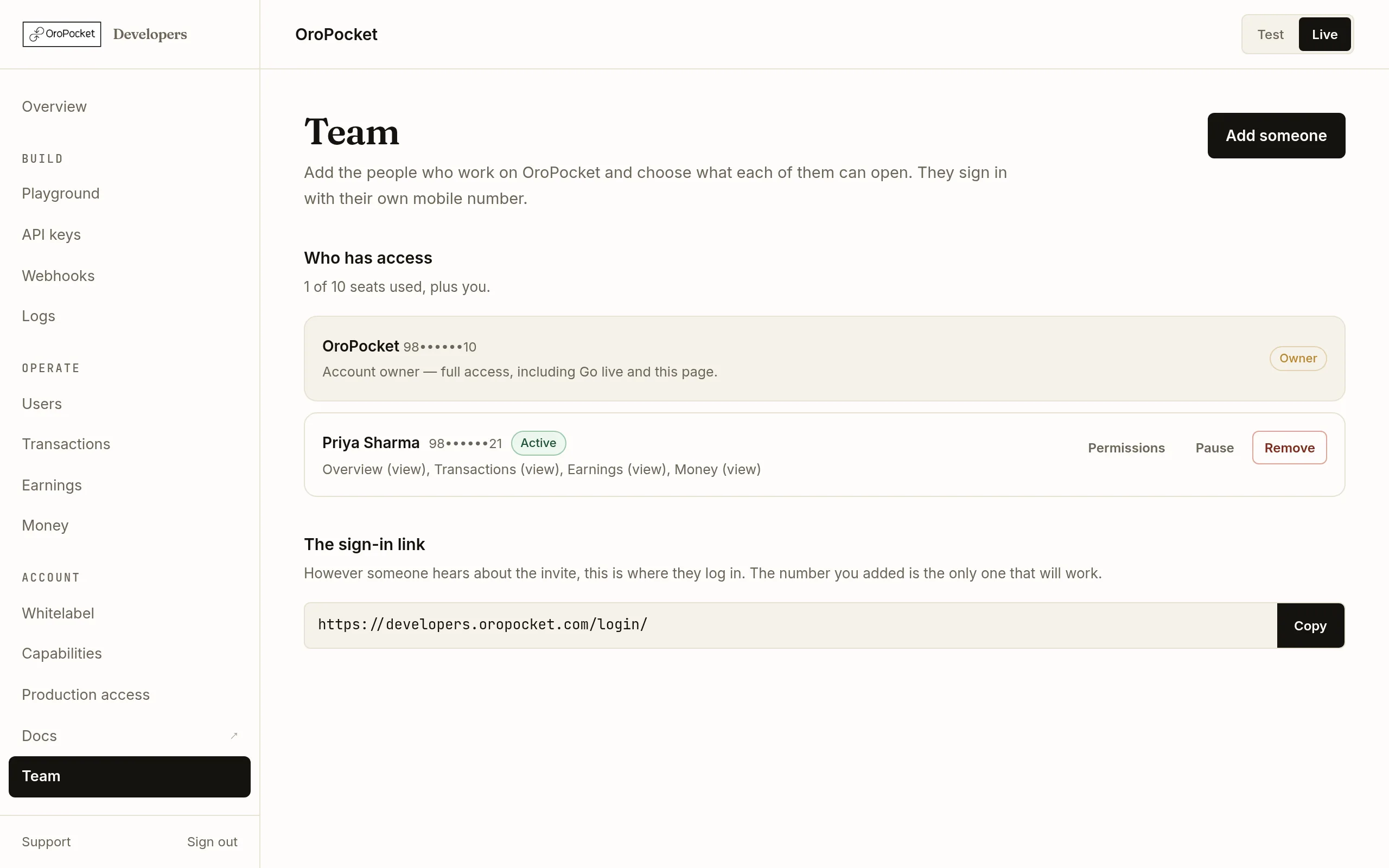
Press Add someone
The form opens inline. If the button is greyed out you are out of seats — the count under Who has access tells you how many you have used.
Enter their mobile number
That number is their account. They sign in at the same address you do, with a one-time code sent to it — no password, and nothing for you to share or rotate. The number you enter is the only one that will work, so it is worth checking.
We message them on WhatsApp. If that fails the page says so and shows you the sign-in link to pass on yourself, rather than silently doing nothing.Start from a role
Four presets, each of which just fills in the permission grid below — they are a starting point, not a fixed role, and you can adjust anything afterwards.
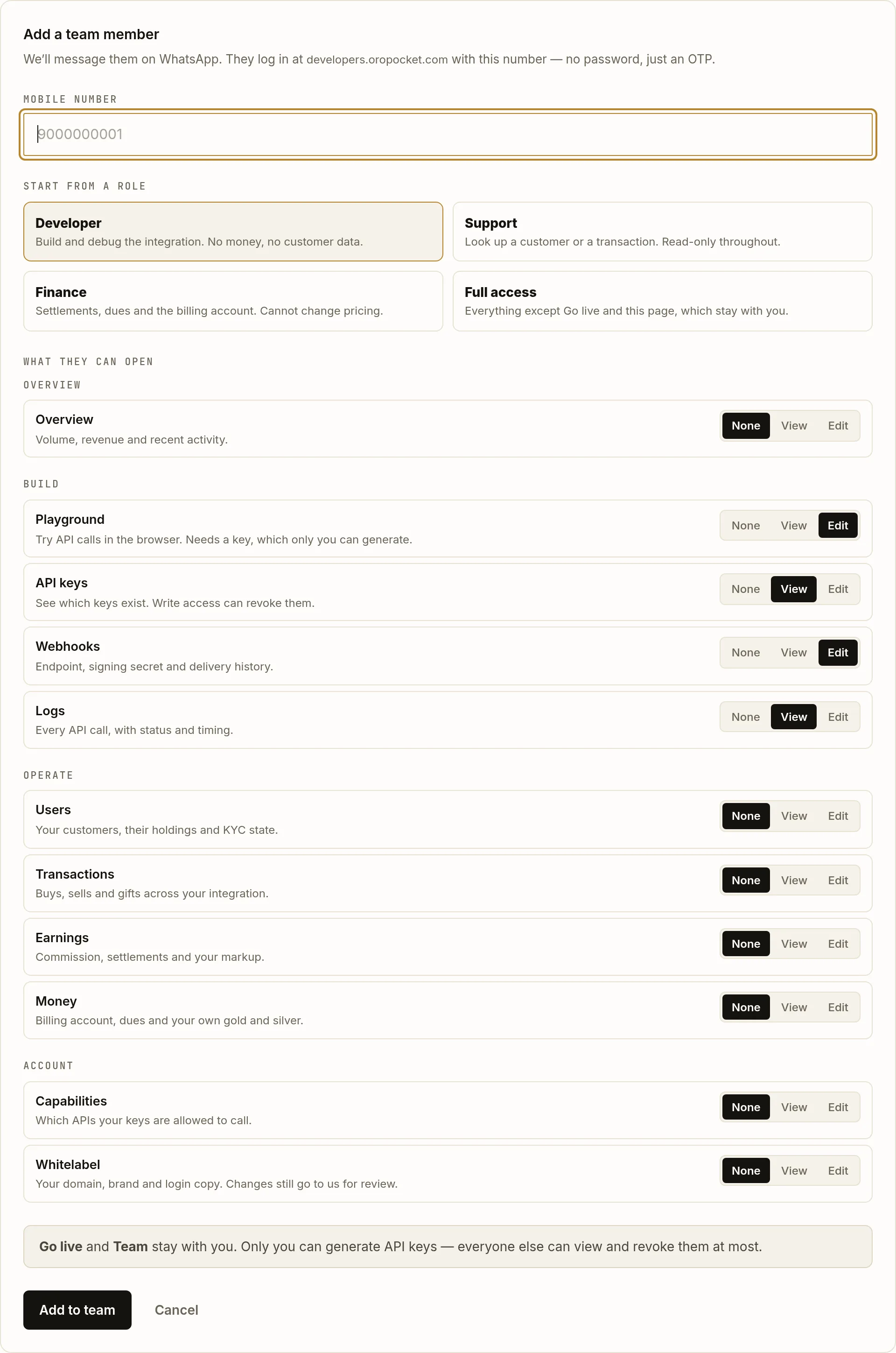
The whole form: mobile number, a role to start from, then per-section permissions. Role What it opens Developer Playground, API keys, Webhooks and Logs. Builds and debugs the integration, and sees no money and no customer data. Support Users, Transactions and Logs, read-only throughout. Enough to answer 'what happened to this customer's order'. Finance Overview, Earnings, Money and Transactions. Settlements, dues and the billing account — without the ability to change pricing. Full access Everything that can be granted. Go live and Team still stay with you. Adjust the grid if you need to
Under What they can open, every section has a three-way control: None, View or Edit. Sections are grouped exactly as the sidebar groups them, and each row says what it contains, so you are not guessing what “Money” covers.
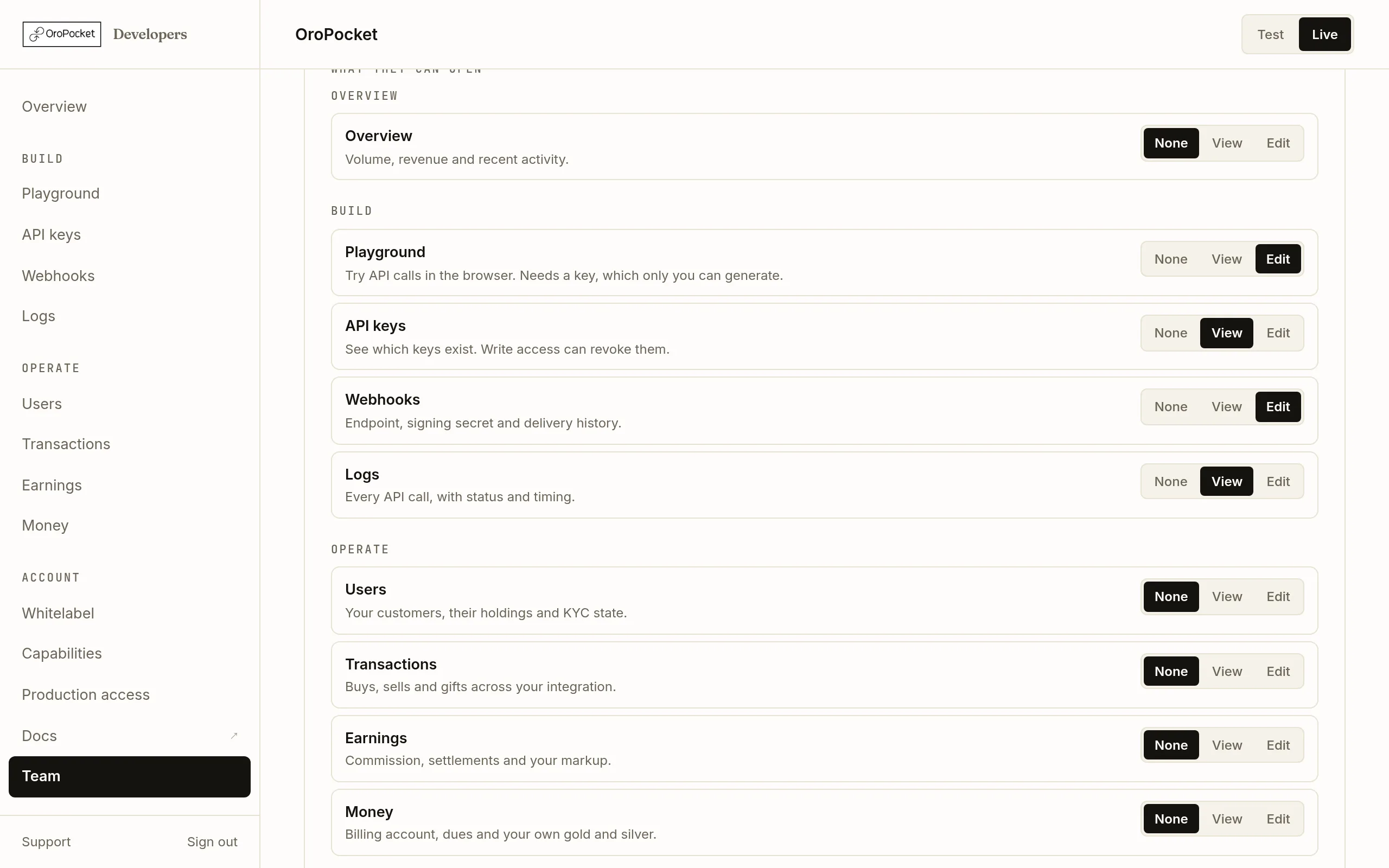
Picking a preset fills the grid in. Change anything after, and the preset simply stops being highlighted. Edit means edit. Edit on Webhooks lets someone rotate your signing secret; on Capabilities it lets them change what your live keys can call; on Money it lets them move funds. The page warns you inline when you grant a write, and it is worth reading — View is the right answer more often than it looks.Add them to the team
You have to grant at least one section — an invite that opens nothing is refused with “Pick at least one section this person can open.” After that they appear under Who has access as Not signed in yet until their first login.
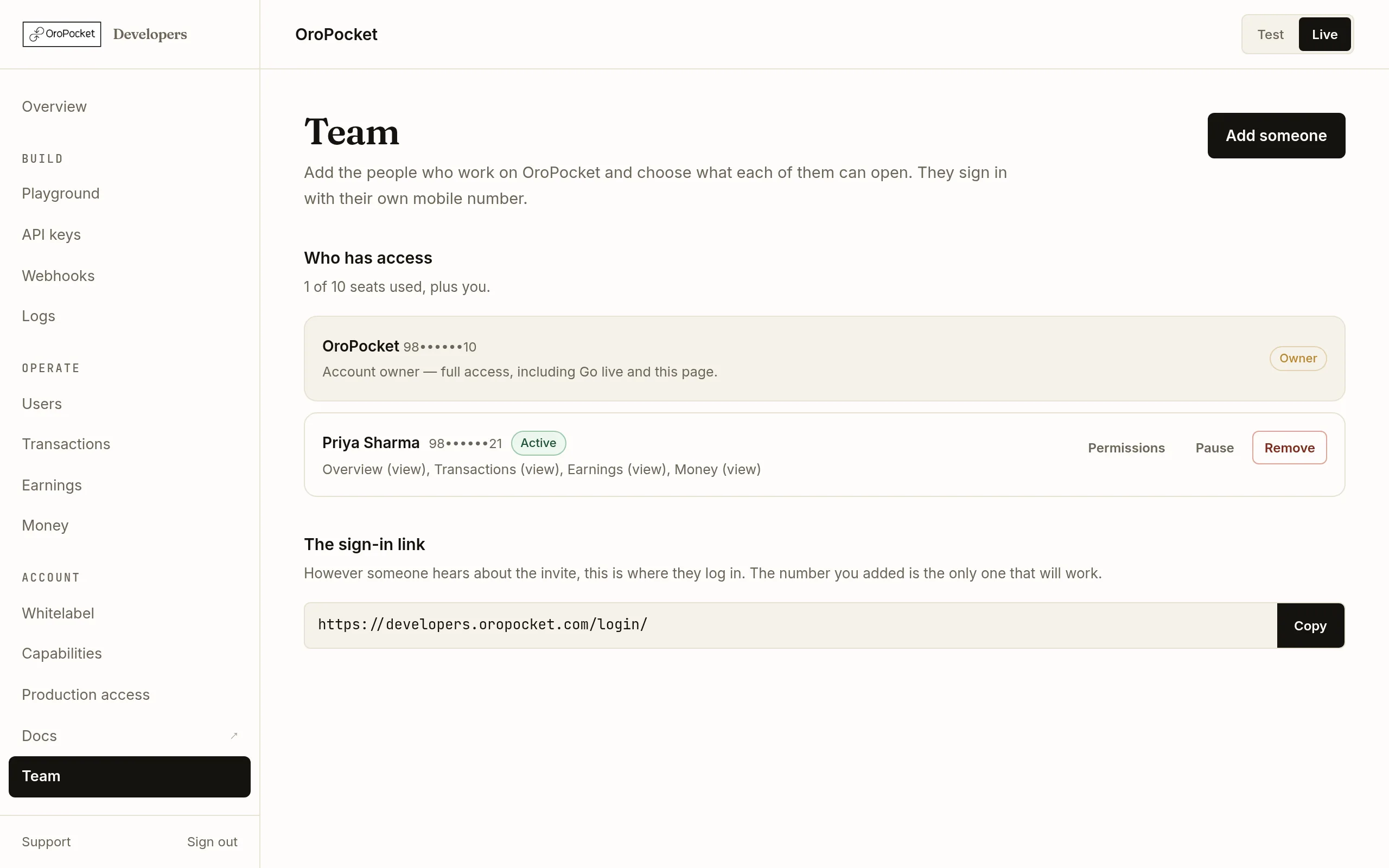
However they hear about the invite, this is where they log in.
What stays with you, whatever you grant
Three things are owner-only and cannot be delegated, even by Full access:
| Owner-only | Why |
|---|---|
| Go live | The application is a contract — it carries your business details, your payout account and a signature. |
| Team | Only you decide who else gets in, so access cannot escalate itself. |
| Generating API keys | A key is minted against the owner’s mobile by construction. A teammate with Edit on API keys can view and revoke them — never issue one. |
What your colleague sees
They sign in and get a dashboard with only what you granted. A new teammate is asked for their name, email and date of birth first — their own profile, which you cannot see or change. Sections they have no access to are simply absent from their sidebar rather than present and broken, and landing on a page they cannot open moves them somewhere they can.