Set your merchant markup
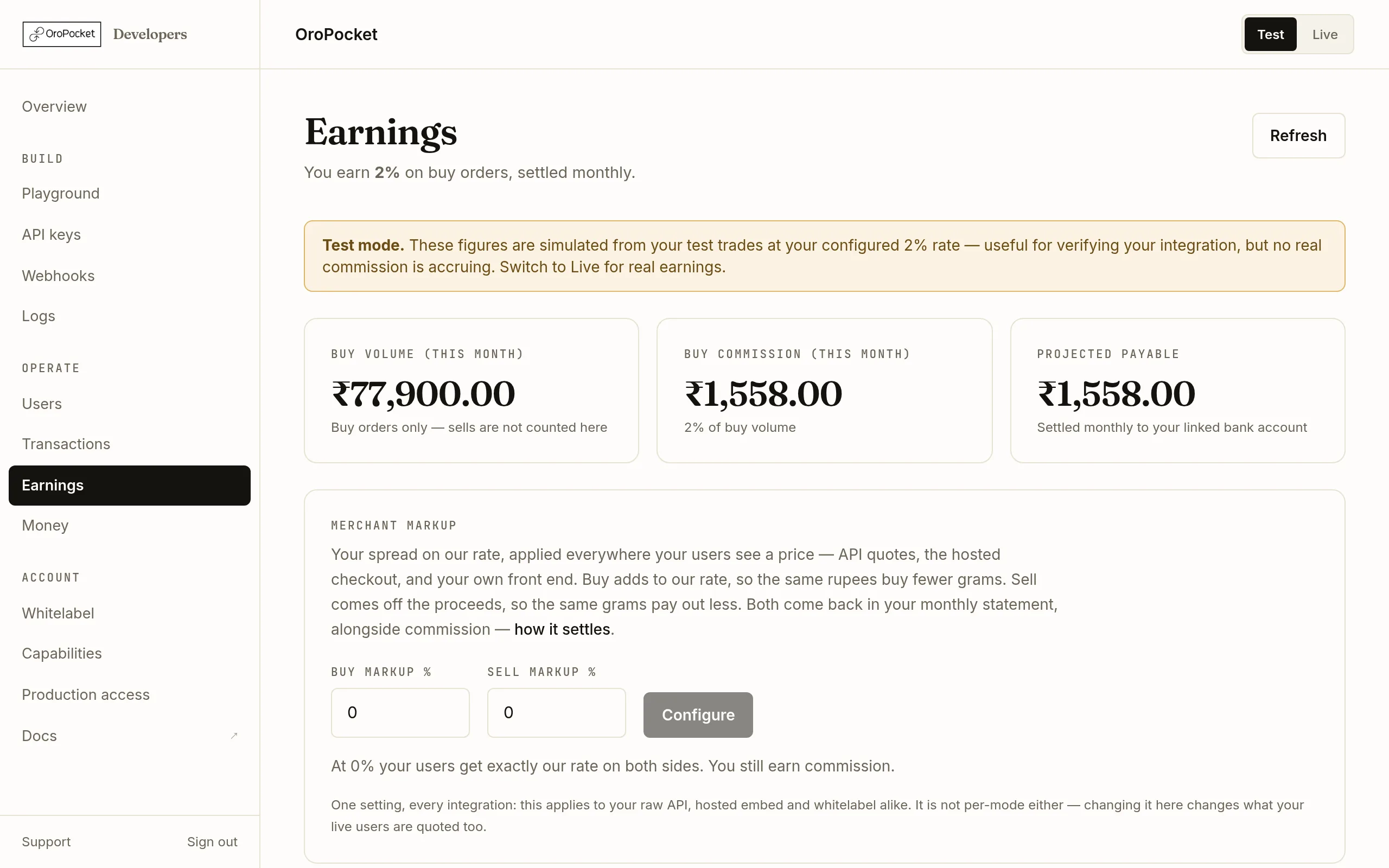
Markup is your own spread on our rate — a second revenue line alongside commission, not instead of it. It lives on the Earnings page, and it is the one dashboard setting that changes what your live customers are charged.
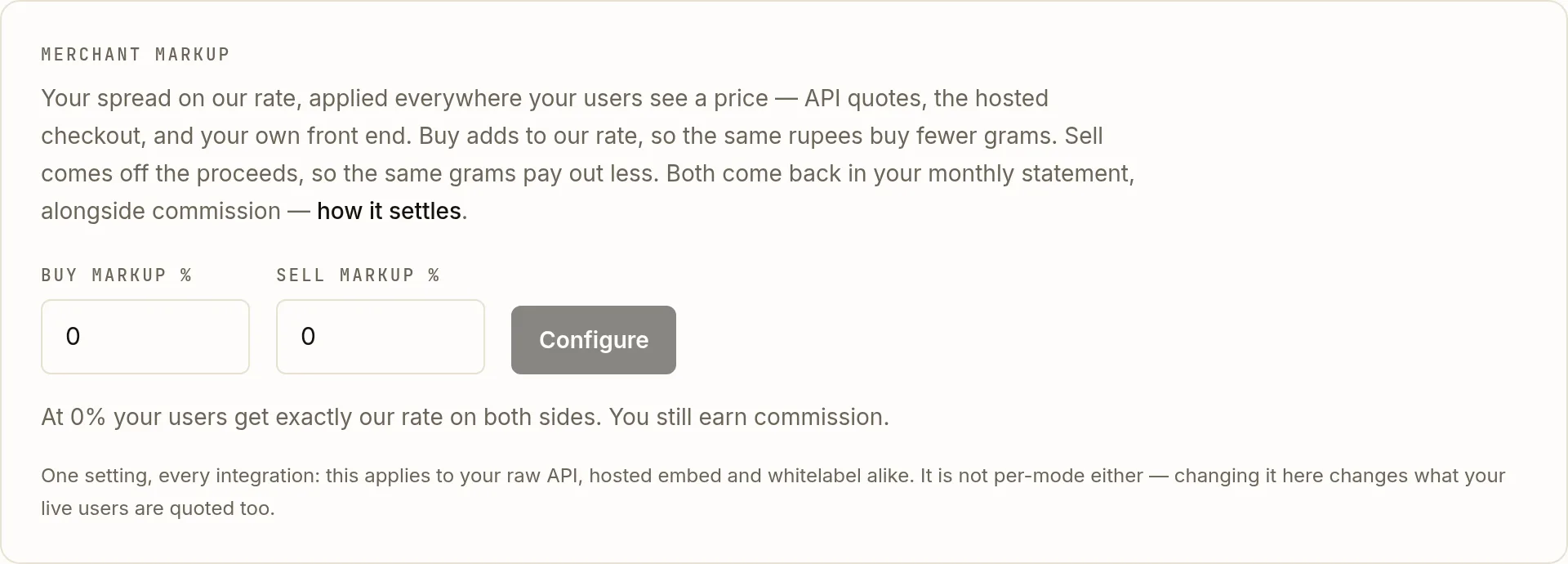
Open Earnings in the Operate section. Above the settlements table is the Merchant markup card.
How it works on each side
| Side | Effect |
|---|---|
| Buy markup | Added to our rate, so the same rupees buy fewer grams. At our ₹10,000/g, a 2% buy markup quotes your user ₹10,200 and returns you ₹200 per gram. |
| Sell markup | Deducted from the proceeds, so the same grams pay out less. A 1% sell markup credits the user ₹9,900 on the way out and returns you ₹100. |
Either way, your user is paid or charged exactly the figure they were quoted. The spread comes out of the metal, not bolted onto their total, so nothing about the checkout looks different to them.
Check you are on Pro
Markup is a Pro feature. On the Free tier the card shows what it would do and links to pricing rather than offering the fields. Commission is unaffected by your tier choice here — you keep earning it either way.
Enter your percentages
Both fields accept up to the cap shown on the card, in steps of 0.1. You can set one side and leave the other at zero — plenty of partners take a buy spread and pay out at our rate.
As you type, the card recomputes a worked example against our current rate, so you can see what your users would actually be quoted before committing.
Press Configure
What happens next depends on whether a markup is already approved for your account.
If Then Nothing is in force yet The value applies directly. Nothing was being charged, so there is nothing to protect. A markup is already approved Your change is staged for review and the approved value keeps serving until an administrator accepts it. The card shows a Waiting for approval banner naming what your users are still being charged in the meantime. Sandbox always uses the figure you just requested, immediately. That is deliberate — it is how you test your new pricing end to end while the live rate stays where it is.
Where the money comes back
Markup is returned to you in your monthly statement, on top of commission rather than instead of it. Commission is charged on the metal value, so marking up does not inflate what you pay us — the two are computed independently.
Settlements are listed under the markup card: each month is finalised on the 1st and marked paid once the transfer to your linked bank account goes out. Billing has the full worked example.