See your users and their transactions
Two pages in the Operate section answer almost every support question you will get: who is this customer, and what did they do. Both are scoped to your own users and mask identity by default.
Users
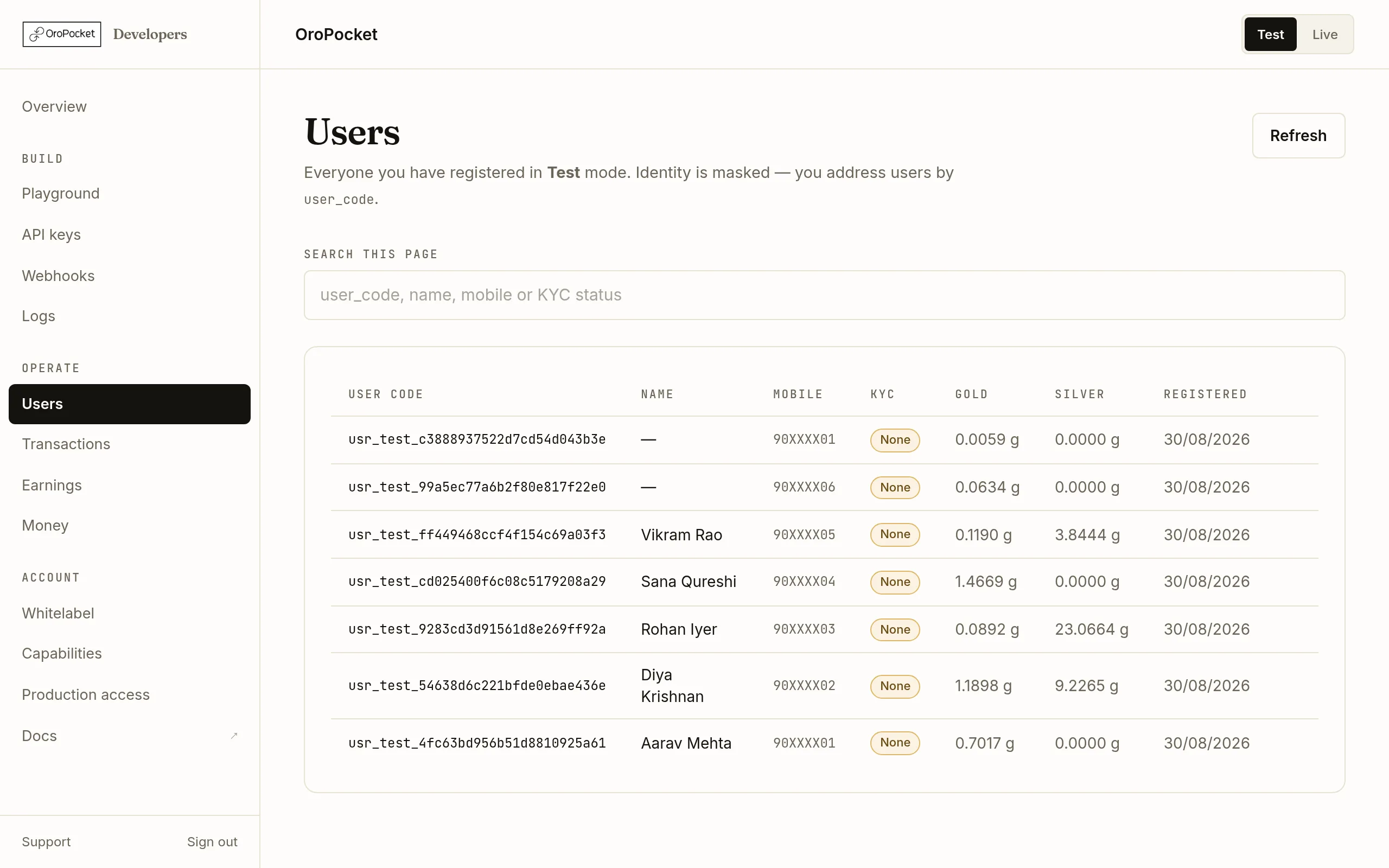
Users lists everyone you have registered in the mode you are currently in. You address people by user_code — the internal account id is never exposed to a partner, and mobile numbers and emails are masked.
Find the customer
Search accepts a
user_code, a name, a mobile or a KYC status. If you are hunting a specific person, the code is the reliable key — names are whatever was supplied at registration.Open the detail drawer
Clicking a row slides in a panel with the full picture: the copyable
user_code, masked contact details, KYC state, whether they already had an OroPocket account before you registered them, and their holdings.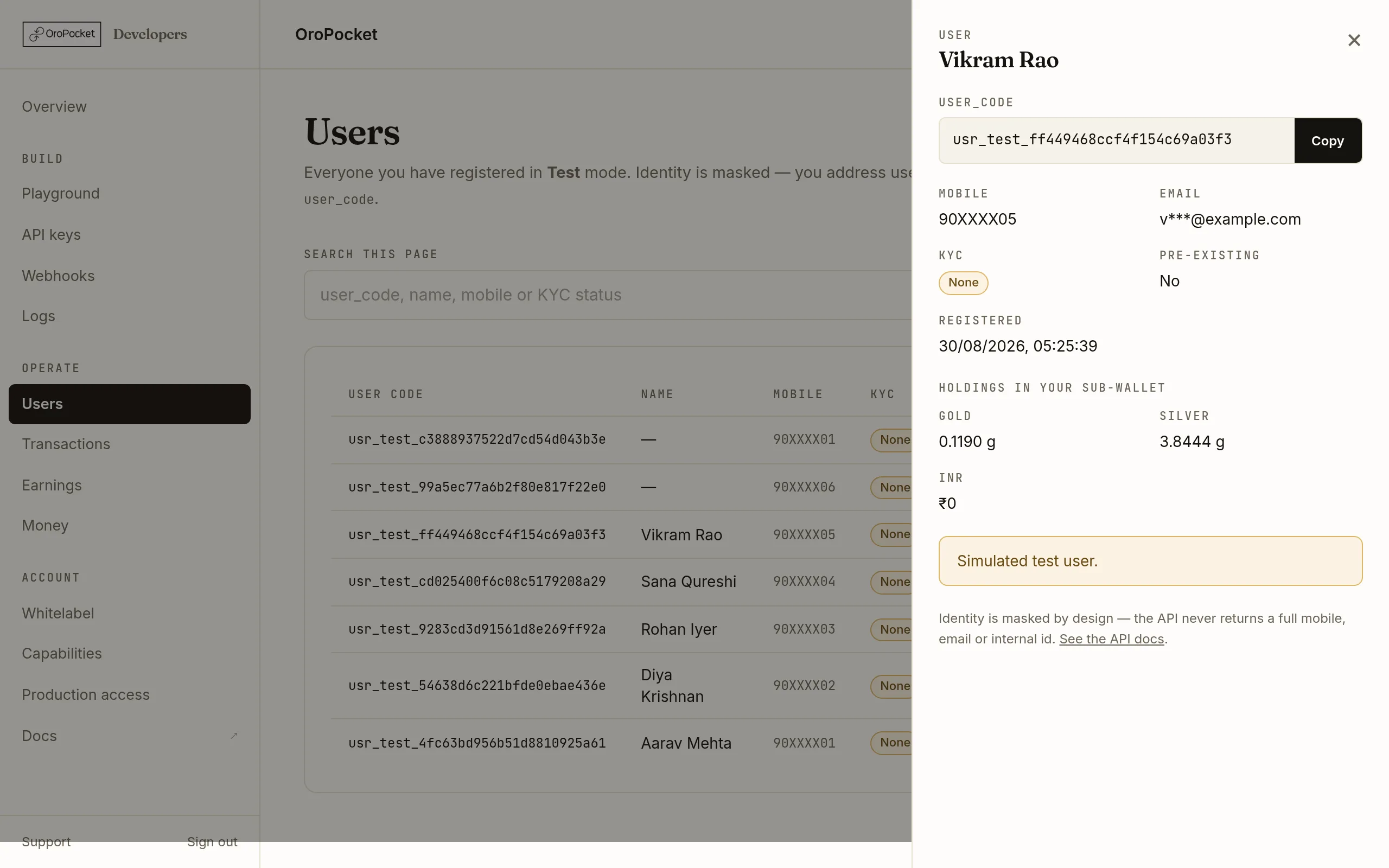
Holdings shown here are the balances held under your integration, not the person's entire OroPocket portfolio. Pre-existing matters more than it looks. Someone who already had an OroPocket account before you registered them keeps their own relationship with us — you see what they hold through you, not everything they own.
Transactions
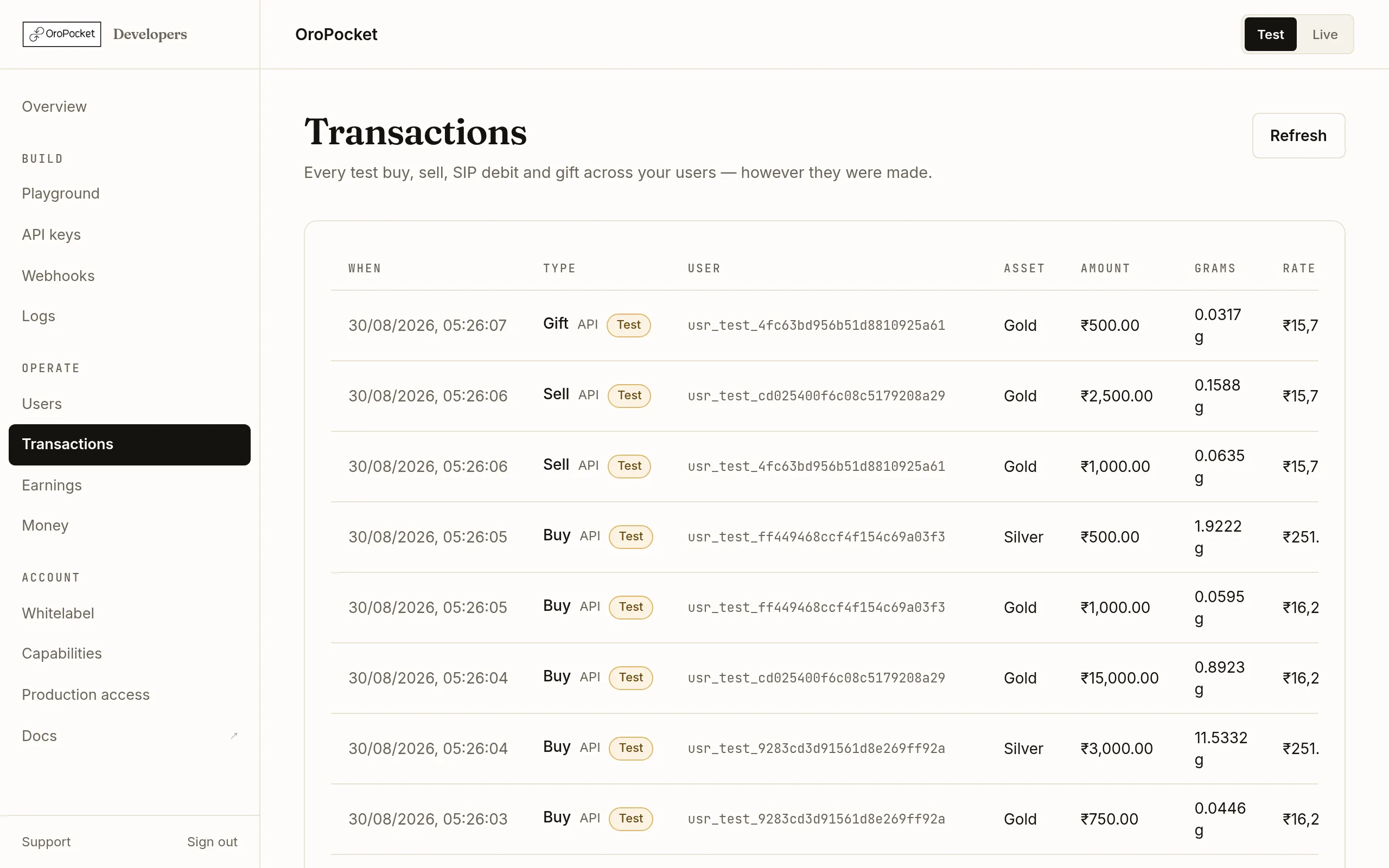
Transactions is the unified feed: every buy, sell, SIP debit and gift across all your users, however it was made. The Type column carries a channel label, which is the part worth reading.
| Channel | Means |
|---|---|
| API | A server-to-server call your backend made — a quote you confirmed. |
| Hosted | Made inside our interface: either the hosted embed or your white-label site. The two cannot be told apart, because the underlying order records no session. |
| App | Made by the user in the OroPocket consumer app, attributed to you. |
| SIP | An installment of a recurring plan, or the creation of one. |
GET /partner/transactions/all for this feed. GET /partner/trades reads consumed quote rows only, so it is always empty for hosted and white-label activity — that difference has caught out more than one integration.Test mode shows test data
Both pages follow the Test/Live toggle. In Test mode rows carry a Test badge and the users are sandbox users — created by your own calls, holding simulated balances. Switching to Live shows real customers and real trades, and nothing crosses between the two.