
Change what a teammate can access
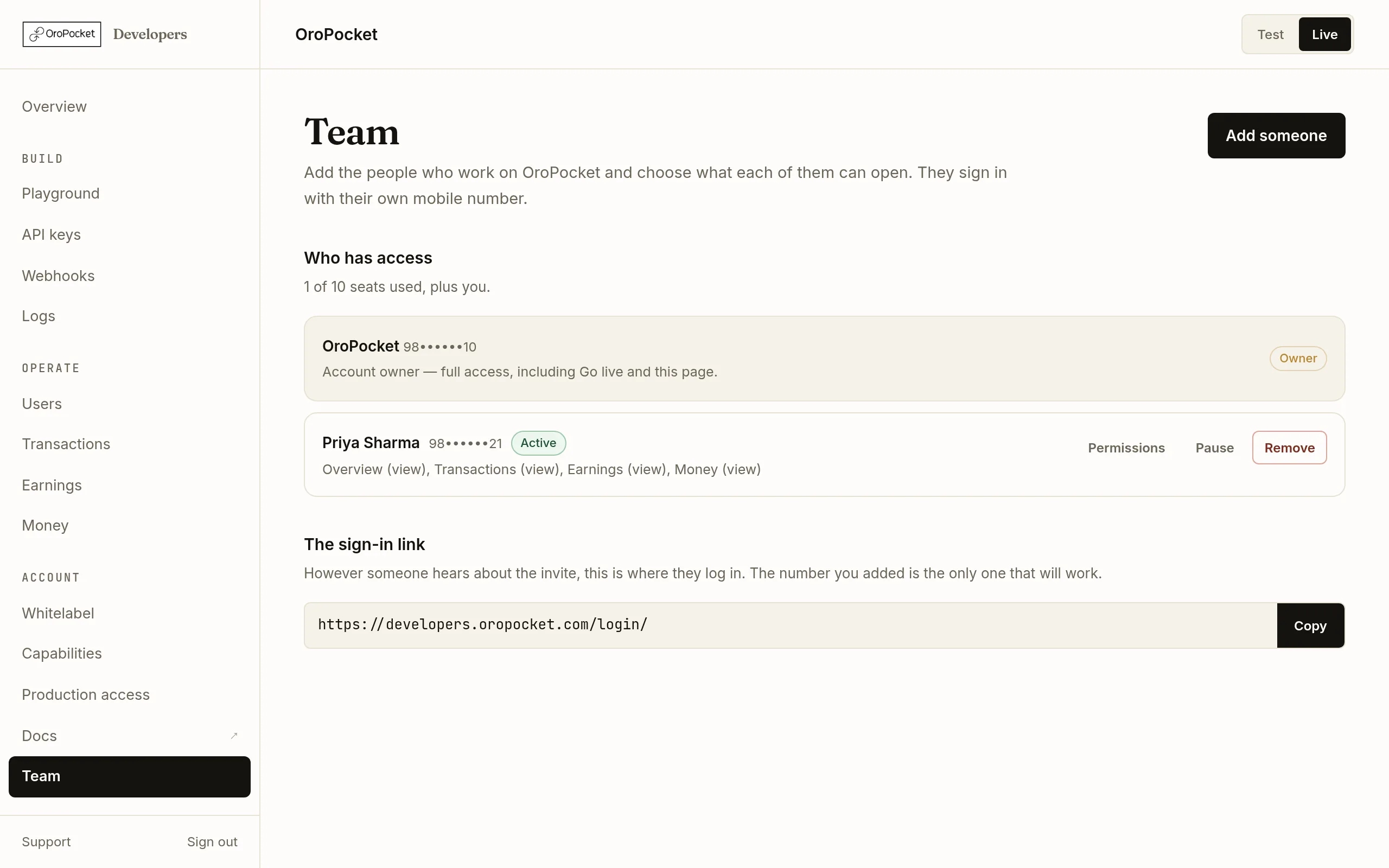
Permissions are not set once at invite time. Every row under Who has access carries the four things you will actually need: change what they can open, resend, pause, remove.
Reading a row
Under each name is a summary of their grants — Overview (view), Transactions (view), Earnings (view), Money (view) — so you can audit the whole team at a glance without opening anything. The badge tells you where they are:
| Badge | Means |
|---|---|
| Owner | You. Full access, including Go live and this page. Cannot be changed or removed. |
| Active | Invited, signed in at least once, and currently able to work. |
| Not signed in yet | The invite went out but they have never logged in. Resend if it has been a while — the WhatsApp message may not have arrived. |
| Paused | Blocked from signing in, but still on the account with their permissions intact. |
Change what someone can open
Permissions reopens the same grid you saw when inviting them, filled in with what they have now. Change any row between None, View and Edit and save.
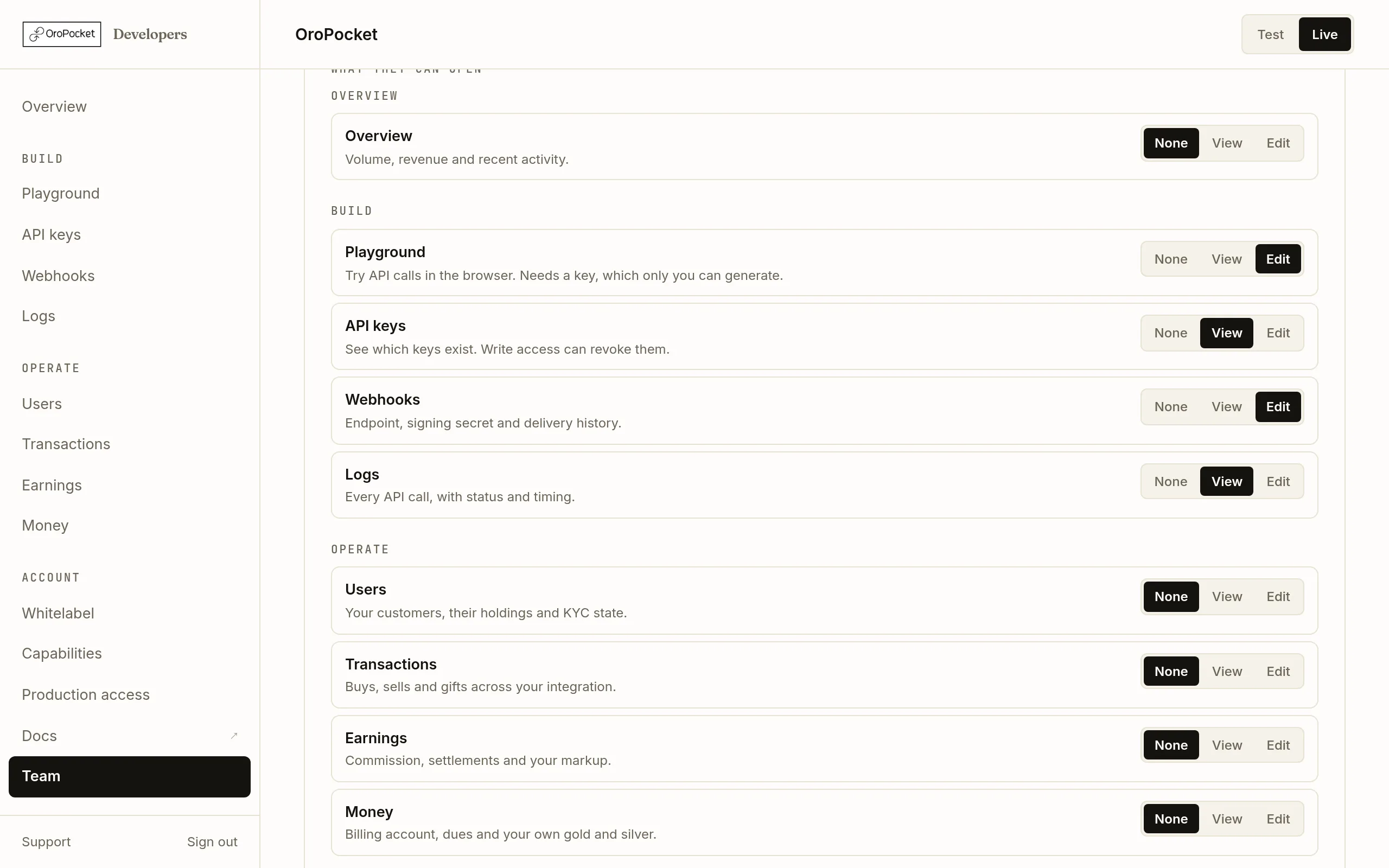
The same grid as the invite form. Sections are grouped exactly as the sidebar groups them. Changes apply the next time their dashboard loads state — there is nothing for them to do, and nothing to re-send. Taking a section away removes it from their sidebar; if they are sitting on that page, they get moved somewhere they can still open rather than being left on a broken screen.Pause someone instead of removing them
Pause blocks sign-in while keeping the person and their permissions on the account. They see a short message explaining that access is paused and that nothing has been deleted. Reinstate puts them straight back with exactly what they had.
This is the right action for someone on leave, a contractor between engagements, or an account you want to freeze while you work out what happened. It is reversible in one click; removal is not.
Resend an invite
Resend appears while someone has never signed in. If WhatsApp delivery keeps failing, the sign-in link at the bottom of the page works just as well passed on by hand — the invite is tied to their mobile number, not to the message.
Remove someone
Remove takes them off the account and frees the seat. The next time they open the dashboard they are told their access was removed and offered the option to create their own account — they are not dropped onto a broken page or silently logged out.
Removing does not undo anything they did, and it does not rotate your API keys. If you are removing someone because a credential may have travelled with them, revoke and regenerate the key as well — see Generate an API key.
Read and write are genuinely different
View is a read-only grant: the person can open the section and see what is there. Edit lets them act, and on several sections that means moving money or changing what your integration is allowed to do.
| Edit on | Lets them |
|---|---|
| Webhooks | Change your endpoint and rotate the signing secret — which will break your receiver until it is updated. |
| Capabilities | Change which APIs your keys may call. Turning one off starts returning 403 API_NOT_ALLOWED immediately, in Live as well as Test. |
| Money | Add funds and settle dues against your billing account. |
| Whitelabel | Change your domain, brand and sign-in copy. Those still go to us for review before anything is served. |
| API keys | Revoke a key. Never issue one — that stays with you. |